CONFIG FILE #3 = Cash Register Config
Enter your store’s number, press <Enter> and the following options will be displayed where you may enter information or change the stores name, twenty four cash register departments, pay types and miscellaneous departments, paid outs, and credit cards.
O p t i o n s
<Esc> for Options |
1 = Change Store Name - Allows you to enter or change the name of store.
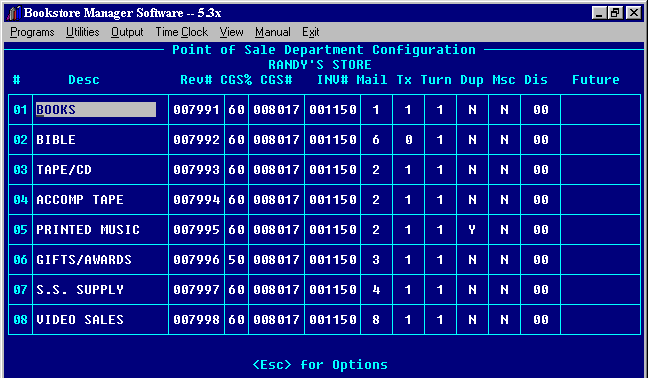
2 = Configure Depts 1 - 8 - Allows you to set-up or change Departments 1 - 8
# - The Department # on the Point of Sale. This cannot be edited.
Desc - Enter the name of Department.
Rev# - Enter the General Ledger Income Account # for the Department.
CGS%- Enter the Cost of Goods Sold % to be taken out of inventory.
CGS# - Enter the Cost of Goods General Ledger Account Number.
INV# - Enter the Inventory General Ledger Account Number.
Mail - Enter the Number code 1-8 that ties sales to Mailing List Names. The 24 departments must be condensed to eight subdivisions. Example: All types of books could be tied to #1, all Bibles to #6, all music to #2, etc. If a zero is entered the sale will not be tied to a Mailing List and the window to enter the telephone number will not be brought up.
Tx - Enter if the Department is Taxable (Tax Rate 1, 2, 3, 4 or 0 if not taxed)
Turn - Put in the "Turn Number" that corresponds to one of the Eight Turnover Tables set up in SYStem Config, #5, Lines 108 thru 116. Will default to "1".
Dup - Enter whether to make duplicate sales for item just rung up. Y/N.
Msc - All will be "N" except "V" for department for video rentals.
Dis - You may enter a discount amount here to put the entire department on sale.
Future - Future Use.
3 = Configure Depts 9 - 16 - Allows you to set-up or change Departments 9 - 16 (Same as Departments 1 - 8.)
4 = Configure Depts 17 - 24 Allows you to set-up or change Departments 17 - 24 (Same as Departments 1 - 8.)
5 = Configure Pay Types and Misc.
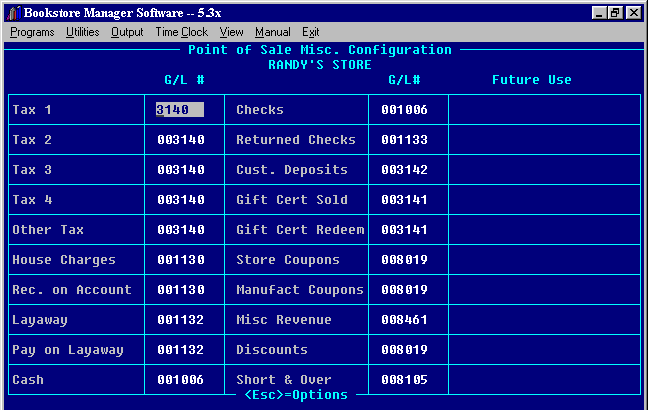
Tax 1, 2, 3, 4, and Other Tax - Enter the General Ledger Liability Account # for Sales Tax Payable.
House Charges - Enter the General Ledger Asset Account # for Accounts Receivable Trade.
Rec. on Account - Enter the General Ledger Asset Account # for Accounts Receivable Trade.
Layaway - Enter the General Ledger Asset Account # for Layaway.
Pay on Layaway - Enter the General Ledger Asset Account # for Layaway.
Cash - Enter the General Ledger Asset Account # for Cash Checking Account.
Checks - Enter the General Ledger Asset Account # for Cash Checking Account.
Returned Checks - Enter the General Ledger Asset Account # for Accounts Receivable Trade.
Cust. Deposits - Enter the General Ledger Liability Account # for Customer Deposits.
Gift Cert Sold - Enter the General Ledger Liability Account # for Gift Certificates.
Gift Cert Redeem - Enter the General Ledger Liability Account # for Gift Certificates.
Store Coupons - Enter the General Ledger Expense Account # for Coupons. Store Coupons are not taxed.
Manufact Coupons - Enter the General Ledger Expense Account # for Coupons. Manufacturer’s Coupons are set up to be taxable or not in the SYStem Config File #5, line #304 = Tax Manufacturer’s Coupons? Y/N:
Misc Revenue - Enter the General Ledger Income Account # for Other Income.
Discounts - Enter the General Ledger Expense Account # for Discounts given.
Short / Over - Enter the General Ledger Expense Account # for Short / Over.
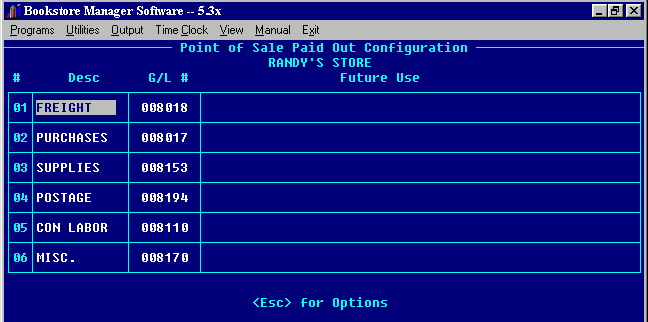
There are six Paid Outs you may configure. Enter the Description and General Ledger Expense Account that corresponds to the paid out chosen.
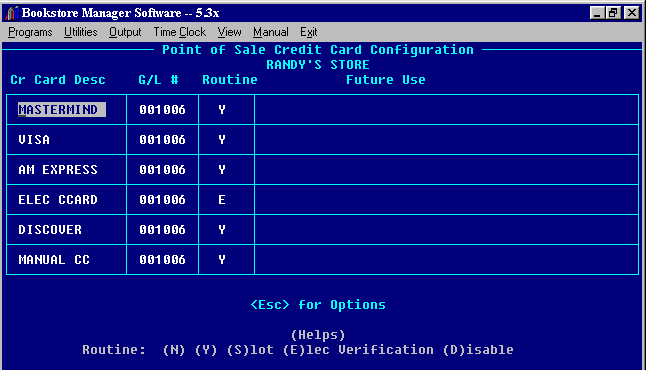
Enter the type of credit cards that you accept.
Enter the General Ledger Asset Account where the deposit for the card will be sent.
Enter the routine used at the POS:
- "N" - Enter "N" if the field is not used.
- "Y" - Enter "Y" to enter credit card #, name, and date manually.
- "S" - Enter "S" to use slot reader to put in card #, name, and date.
- "D" - Enter "D" to disable function.
- "E" - Enter "E" to send credit card information electronically to processing center.
<Esc> - Will bring up the options:
(S)ave (C)ancel command, or (Q)uit - no changes.
- (S)ave - Will save information entered.
- (C)ancel command - Will cancel the <Esc> Options and will allow you to continue to edit file.
- (Q)uit - no changes - Will exit the file without changes being saved. File will be the same as when brought up.
After choosing (S) to save the information/changes, a window will be displayed:
General Ledger Link
Do you wish to Update the General Ledger? __
<Esc> to Skip
The General Ledger Account Numbers for the Cash Register Departments you have entered will be changed to the description entered here.